Drag-and-drop print sheet reordering. Lock, save, undo, done.
Print Order Control grew out of Plot by Revision. Once the sheets were selected, people still needed to control the order. Cover sheets, permit packages, and ASI responses each have a required sequence. The print workflow didn't end at sheet selection, so Print Order Control became its own tool to handle the rest.
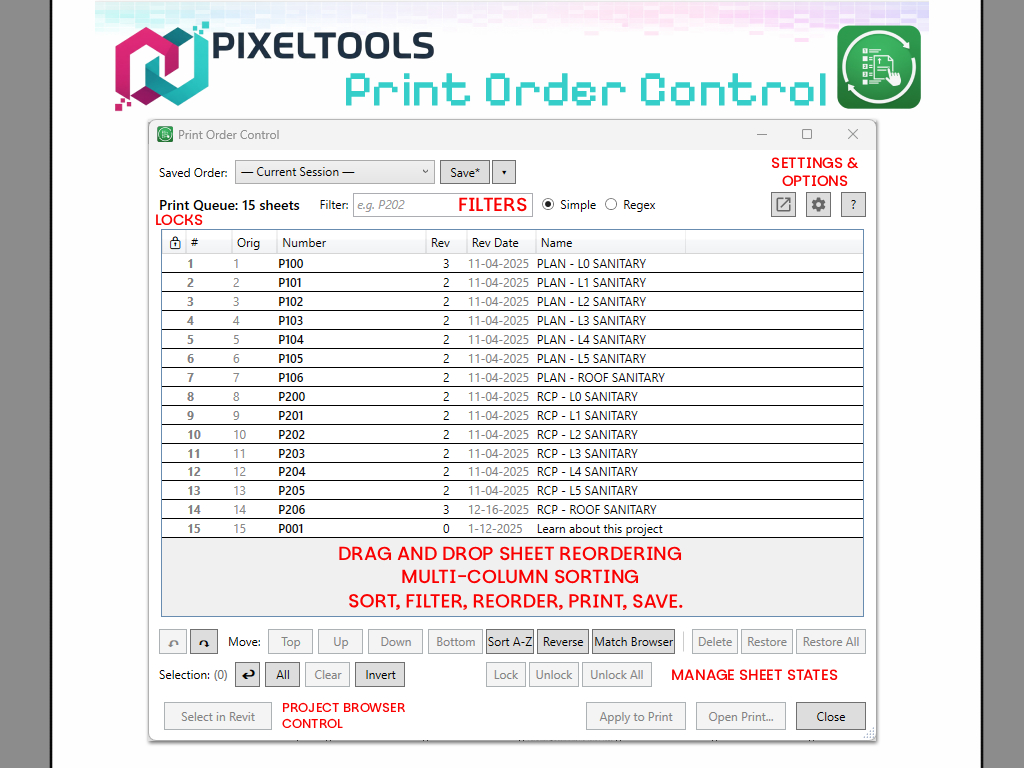
It gives you drag-and-drop reordering, lock positions, saved configurations, and full undo. Use Plot by Revision to build the set and Print Order Control to arrange it, then open Revit's print dialog when you're ready.
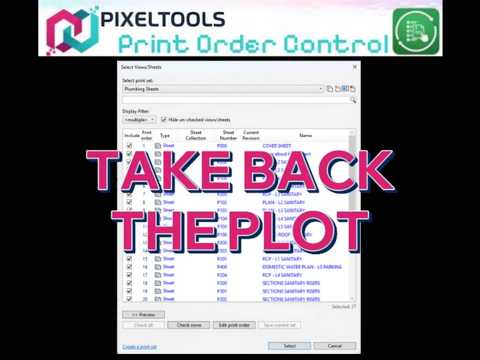
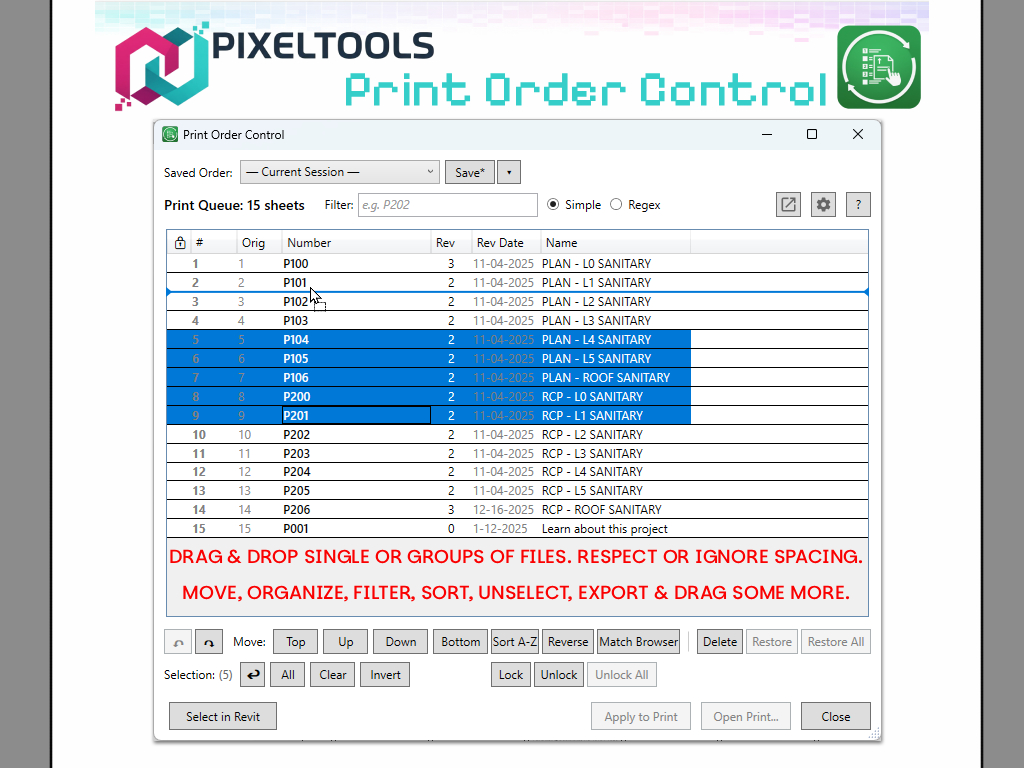
Grab sheets and drag them where you want. Multi-select supported, so you can move entire groups at once. A live drop indicator shows exactly where sheets will land.
Lock critical sheets in place. Locked items stay put during sort operations, so cover sheets and key drawings never move. Temporarily unlock all at once when you need to rearrange everything.
Save named print orders per project ("Full CD Set", "Permit Package", "ASI Response") and reload them instantly. Auto-saves your last session for quick resume.
Up to 50 levels of history on every reordering operation. Ctrl+Z to undo, Ctrl+Y to redo.
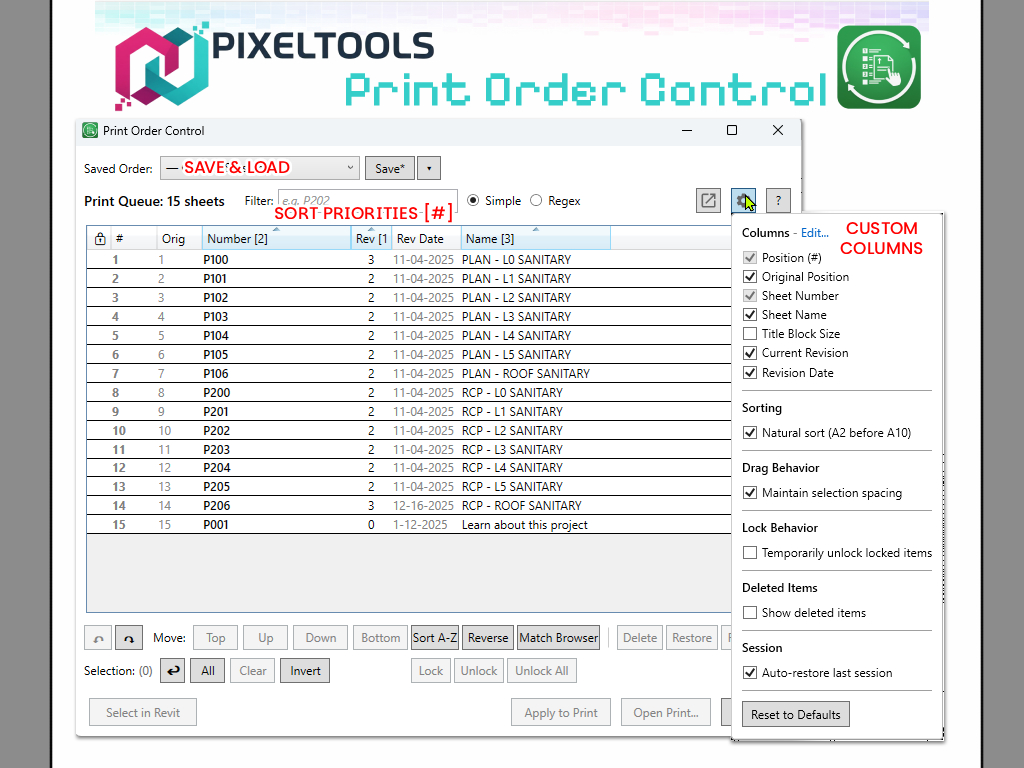
Sort A–Z, reverse order, or match Project Browser organization. Natural sort keeps A2 before A10. Click column headers to sort.
Remove sheets from the queue without losing them. Restore anytime. See revision info, custom parameters, and more in configurable columns.
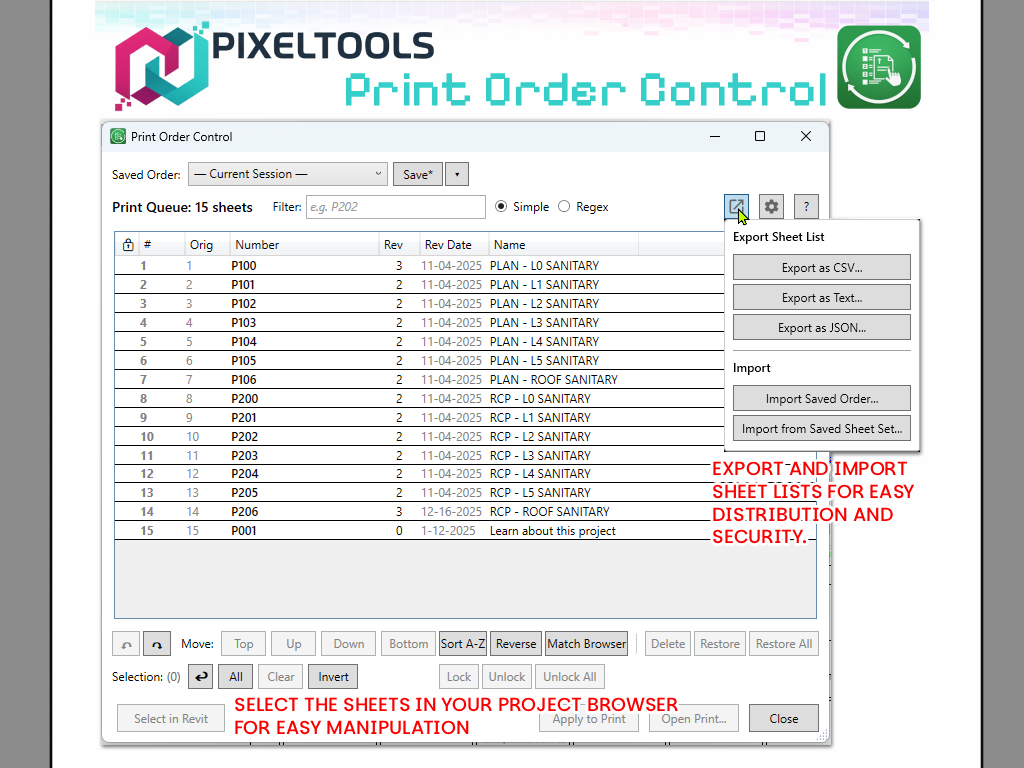
Share print orders across projects or with colleagues. Export to CSV, TXT, or JSON. Import sheet lists from any text file. Ideal for coordination with external teams.
Find sheets instantly with text search. Supports wildcards (* and ?) for flexible matching, or switch to regex mode for advanced patterns.
Full localization in English, German, Spanish, French, Italian, Portuguese (Brazil), Japanese, Korean, and Chinese. The interface automatically matches your Revit language setting.
Power users rejoice. Everything has a shortcut.