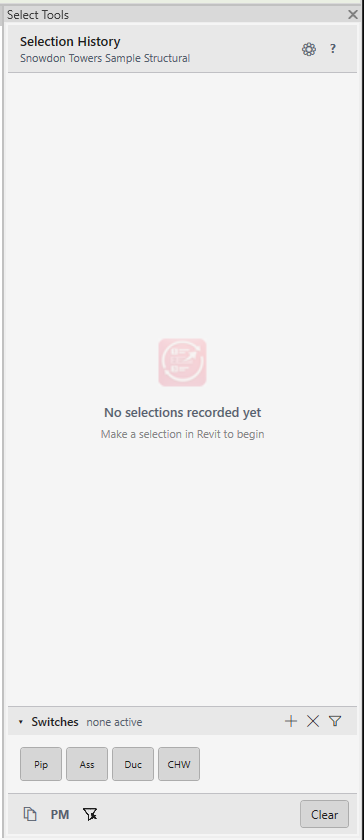
Element history, list matching, and data export. One panel.
Select Tools is the third Pixeltools add-in. Plot by Revision came first, built after a post on the Autodesk Idea forums where several people needed a better way to build a print set. Print Order Control followed to handle the order. Select Tools handles the model side: the element sets you keep losing, the lists you work from, and the data you need to copy out.
Your foreman sends a spool list. You need all the hangers in Zone 3. You grab a large area and only want duct. Someone emails you sheet numbers. Select Tools handles all of it: keeping past element sets close, matching pasted names to real Revit elements, and copying the data you need straight to the clipboard. No rebuilding from scratch.
Selection History is free and always on. Paste & Match, Selection Switches, and Select to Clip are paid features with a 30-day free trial. In the free tier, Paste & Match uses Verbatim mode only and Select to Clip copies Assembly Name only, enough to be useful, less than the full toolset.
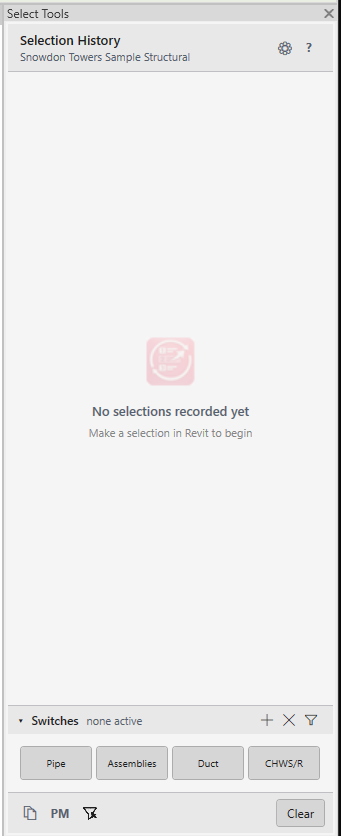
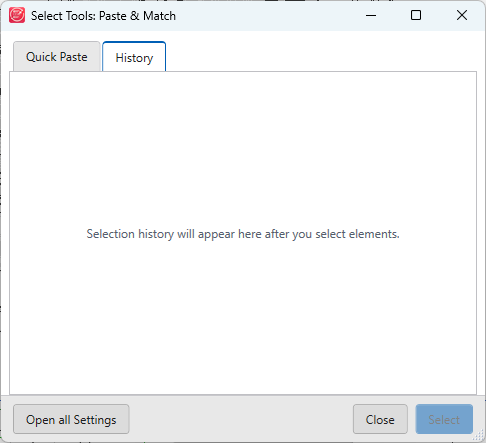
You just worked 34 hangers in Zone 3 and switched to a sheet to check a detail. Open the history entry to get those hangers back. Works for pipe runs, spool assemblies, sheets, or anything else you've had active.
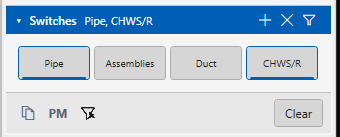
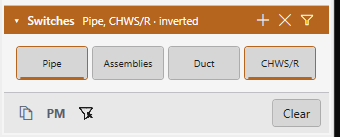
Grab a whole bay or room and you get walls, pipe, duct, hangers, structure, and everything else. Activate the Pipe switch to keep only pipe. Add Duct. Add Hangers. You end up with exactly the trades you need and nothing else.
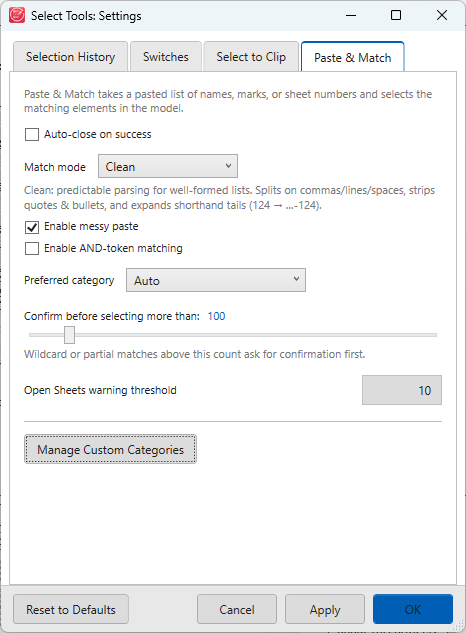
Copy a list from an email, RFI, or spreadsheet: sheet numbers, spool names, assembly names, marks. Paste it in and Select Tools finds and activates the matching Revit elements. Messy input works fine. Press Ctrl+V anywhere on the panel to open Paste & Match instantly.
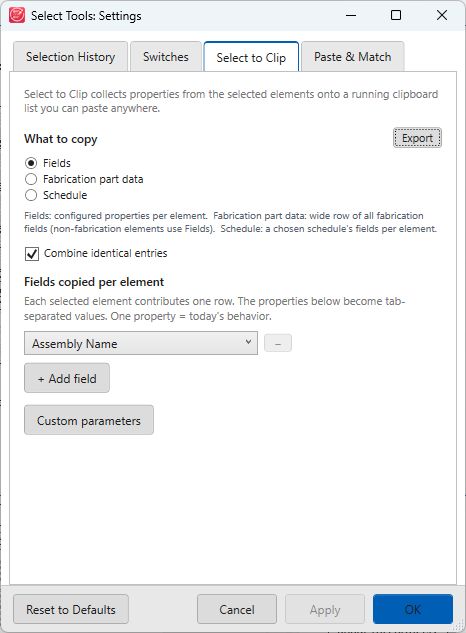
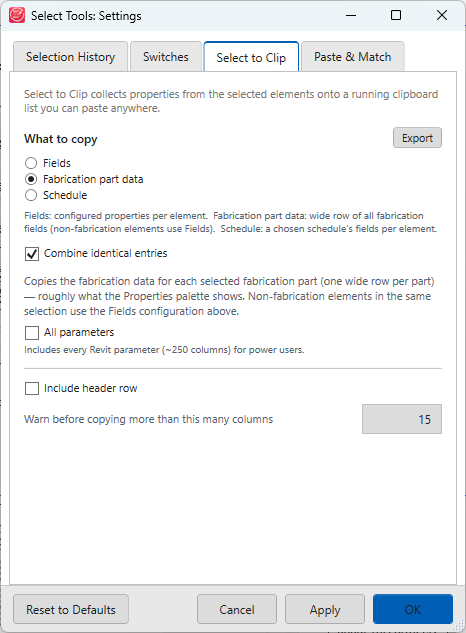
Select to Clip pulls data off the active element set and drops it on the clipboard. Copy the fields you choose, a full row of fabrication part data, or a schedule's columns. Paste into Excel, an email, or back into Paste & Match. Or use the Export button to write directly to an .xlsx file. No Excel required.
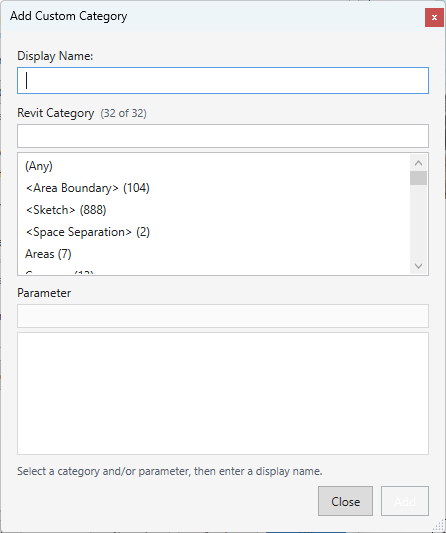
Filter by category, family, type, mark, or parameter value, then save the filter as a Search Set. Run it again next week when the model updates. Common ones: all hangers in a service, all pipe in a zone, every fitting in a system.
Pin the element sets that keep coming back. A pinned entry stays at the top of the list and survives a Revit restart. Useful for the phase you are coordinating or the area you keep returning to.
Paste a spool list from a handoff sheet or email. Select Tools finds the matching assemblies in the model at once. Copy the names back out to confirm what was found and what wasn't.
Grab all elements in a zone with one box select, then activate the Hangers switch to keep only hangers. Filter a large set down to one trade, one service, or one level. Restore the same element sets across multiple working sessions.
Paste sheet numbers from an emailed markup or RFI directly into Select Tools. Select the matching sheets in the project browser. Add them to a print set or open them as tabs.